You can click on the automatic installer option.
The usual thing to do is download, double-click on the .dmg file, and move to the Applications folder.
apt-get install puredata
First of all, open Pd by double-clicking on the Pure Data executable or app file.
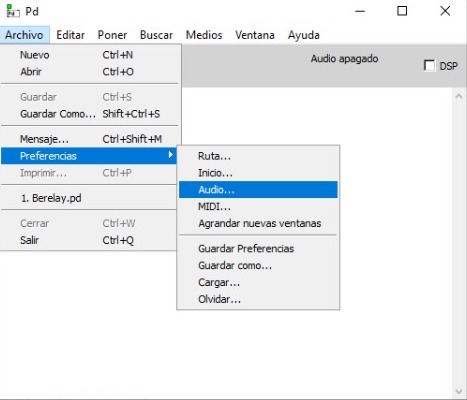
There are two ways to configure Audio in Pd:
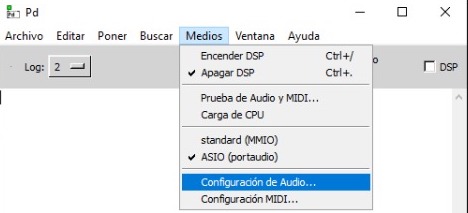
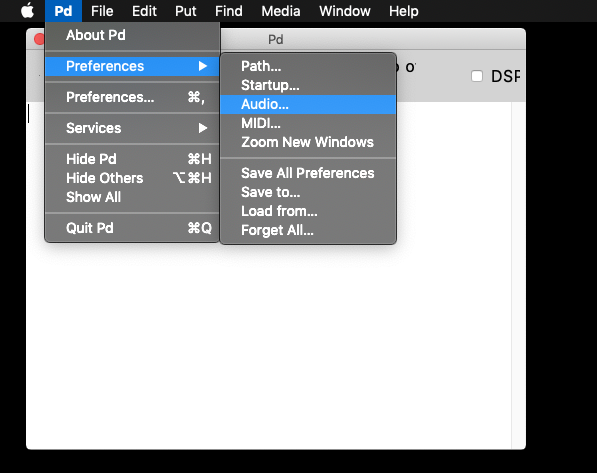
The following window will open:
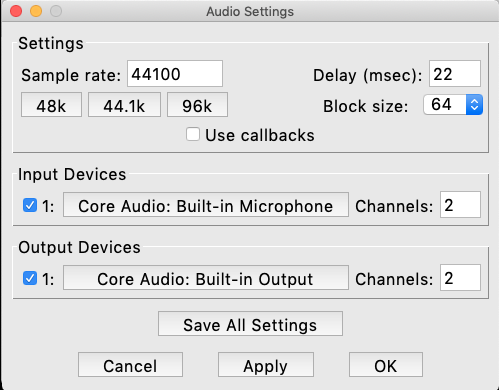
Make sure that the correct Input and Output devices are selected
Also, take note of the Delay (msec) parameter.
This is where we test that our audio is working for Pd.
Go to Media / Test Audio and MIDI...
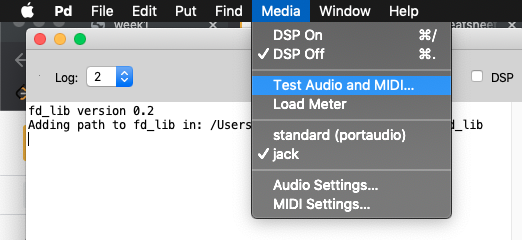
The following window will open:
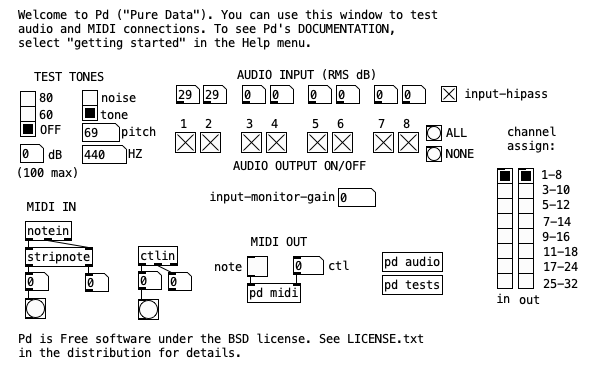
Click on "80" to listen to a test-tone playing at 440 Hz.
You can also check your Audio Input levels corresponding to each channel. And you can toggle the Audio Output channels ON or OFF by clicking on the boxes.
If there is no sound, then
If you hear clicks or pops, then
In Pd's Audio Settings, set the Delay (msec) parameter higher.
In general, this should not be above
50milliseconds.
(Windows only): make sure MMIO is not selected. Be sure to use ASIO.
Nowadays most audio interfaces have ASIO, so you don't need to worry about that: just select ASIO and your interface will be connected. However, if you don't have an interface, one solution is to download the latest ASIO4ALL driver (https://www.asio4all.org), install it, re-open Pd, and select
ASIO (portaudio)from the Media menu; ASIO4ALL should open afterwards.